In File Explorer, press Ctrl+Shift+N to create a new folder. It appears in the current folder with its name selected, so you can type the name straight away and press Enter.
Microsoft lists it in the Windows keyboard shortcuts as "Create a new folder", and it works the same in Windows 10 and Windows 11.
Other ways to make a folder
- The context menu. Right-click an empty spot in the folder and choose New > Folder.
- The command bar. In Windows 11, select New at the top left of File Explorer, then Folder.
- Rename right away. If you created a folder and clicked elsewhere, select it and press F2 to rename it.
Useful shortcuts around it
From the same Microsoft list:
- Win+E opens File Explorer.
- Ctrl+N opens a new File Explorer window.
- F2 renames the selected item.
Together that is: Win+E, go to the place, Ctrl+Shift+N, type the name, Enter.
Need several folders, for example one per month or per project? Repeat the last three steps: Ctrl+Shift+N, name, Enter, and again. Your hands stay on the keyboard the whole time, which is the main gain over the right-click menu.
Why Ctrl+Shift+N does something else
- A browser is in front. In Chrome and Edge, Ctrl+Shift+N opens a private window. The shortcut goes to whichever window is active, so click inside File Explorer first.
- The focus is in the address bar or the search box. There, the keys go to the text box. Press Esc or click the file list.
- You are in a place where folders cannot be made. This PC and Home do not hold files of their own. Open an actual folder, such as Documents or a drive.
- No permission. Some system folders and network shares do not let you create folders. Windows asks for administrator permission or refuses.
- Another program took the shortcut. A tool that registers Ctrl+Shift+N system-wide can catch it before File Explorer does.
A new folder in one flick
RadialDeck is the radial menu for Windows that we make. When File Explorer is in front, the same hotkey that opens your usual ring opens an Explorer ring, and the gallery has New folder as a ready-made slice: it presses Ctrl+Shift+N in the folder you are looking at.
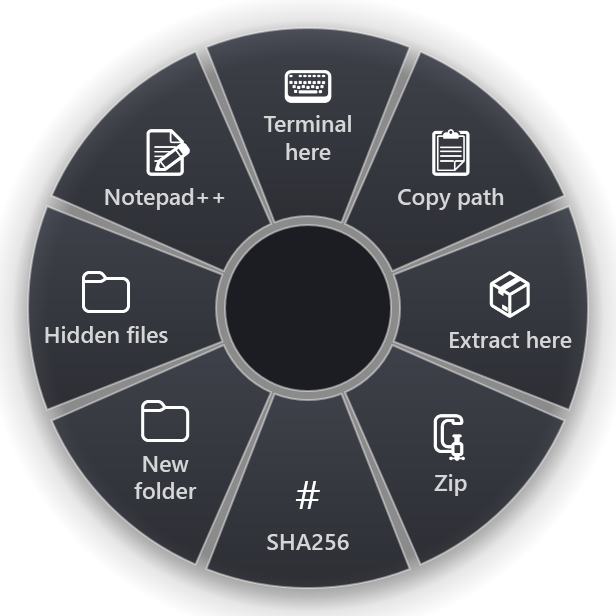
The Explorer ring works on the folder and the files you selected, so the same place holds the things people otherwise do with long right-click menus: Terminal here, Copy path, Extract here, Zip, SHA256, Hidden files and opening the selection in an editor.
Ready-made rings for the programs you use next to File Explorer, such as Windows Terminal, WinRAR and Everything, are listed on the programs page.
Quick reference
- New folder: Ctrl+Shift+N, type the name, Enter
- Rename: F2
- Open File Explorer: Win+E
- New window: Ctrl+N
- Mouse: right-click > New > Folder
RadialDeck is free for two rings, and Pro adds a ring per program such as the Explorer ring, with a 14-day trial. It is in the Microsoft Store.
Try it in RadialDeck
Free for two rings, with a 14-day trial of everything in Pro. Windows 10 and 11, from the Microsoft Store.
 or download the installer (.exe)