AutoCAD runs on typed commands. You type LINE or its alias L, press Enter, and the command starts. When that stops working, the symptom tells you a lot: is the text not appearing at all, appearing but not running, or running the wrong thing? Here are the causes in the order they usually turn up.
Find the symptom first
- Nothing appears near the cursor while you type, but the command line at the bottom shows your text: Dynamic Input is off or set not to show prompts (section 1).
- No command line at all: it was closed (section 2).
- Your text shows up in odd letters, or AutoCAD says Unknown command: check the input language (section 3).
- Full command names work, but aliases such as
COorRECdo not: look at acad.pgp (section 4). - Ctrl shortcuts or F-keys do nothing: look at the CUI, Fn Lock and other programs (sections 5 and 6).
1. Dynamic Input is off, or its prompts are hidden
The text box that follows the cursor is Dynamic Input. Autodesk's help describes several ways to switch it:
- Press F12.
- Click the Dynamic Input button on the status bar. If the button is not shown, add it from the Customization menu at the right end of the status bar.
- Set the system variable
DYNMODE. A value of3turns on both pointer input and dimension input;0turns Dynamic Input off.
Even with Dynamic Input on, the command prompt at the cursor is controlled by a second variable, DYNPROMPT. It must be 1 for prompts to show near the cursor.
Fix: type DYNMODE, Enter, 3, Enter. Then DYNPROMPT, Enter, 1, Enter. If F12 toggles nothing on a laptop, see section 6.
2. The command line was closed
Ctrl+9 hides and shows the command line, and it is easy to press by accident. Closing the window with its X does the same.
Fix: press Ctrl+9 again, or type COMMANDLINE and press Enter. If the window is there but floating somewhere odd, drag it back to the bottom of the drawing area until it docks.
3. The keyboard layout is not English
AutoCAD reads the characters you type. If Windows has switched to a Cyrillic, Greek or other non-Latin layout, the same keys type other letters, and LINE arrives as something AutoCAD does not know. Autodesk's knowledge base covers this case: with a non-English input language active, English commands cannot be typed.
The layout changes easily with Win+Space or Alt+Shift, and Windows can keep a different layout for each window, so AutoCAD may be on a different layout from the program you were just typing in.
Fix: check the language indicator next to the clock while AutoCAD is in front and switch with Win+Space. If you switch languages all day, the Autodesk App Store has plugins that switch the layout for AutoCAD automatically.
4. acad.pgp was changed or not loaded
Command aliases (L for LINE, CO for COPY, REC for RECTANG) are defined in a text file called acad.pgp. If someone edited it, if an update replaced it, or if AutoCAD loads a different copy from the one you edited, your aliases change.
Check which file AutoCAD uses: type this on the command line and press Enter:
(findfile "acad.pgp")
AutoCAD prints the full path of the file it found first.
Reload after editing: type REINIT, select PGP file in the dialog and choose OK. You do not need to restart.
5. The CUI or a reset changed your shortcuts
Ctrl shortcuts and function keys live in the customization file, edited with the CUI command under Keyboard Shortcuts. A workspace from another computer, an office-wide CUIx, or a profile reset can replace them.
Check: type CUI, expand Keyboard Shortcuts > Shortcut Keys and look for the key. If it is assigned to something else, or missing, change it there.
AutoCAD's Reset Settings to Default tool in the Windows Start menu also returns aliases and shortcuts to their defaults. If your settings are custom, back up your acad.pgp and your CUIx before you use it.
6. Fn Lock, another program or the wrong focus
- Function keys: F3 (object snap), F8 (ortho), F10 (polar) and F12 (Dynamic Input) do brightness and volume on many laptops. Hold Fn, or turn on Fn Lock (on many keyboards Fn+Esc).
- Another program: screen recorders, graphics drivers and clipboard tools can register Ctrl+Shift and Ctrl+Alt combinations system-wide. Close tray programs one at a time to find it.
- Focus: if a palette such as Properties or a text editor has focus, your typing goes there. Click in the drawing area and press Esc twice.
Where a radial menu helps
RadialDeck is the radial menu for Windows that we make. When AutoCAD is in front, the same hotkey opens an AutoCAD ring. The gallery has 29 AutoCAD actions, and most of them are short macros: press Esc to cancel whatever is running, type the command, press Enter. Zoom extents types ZOOM E, Purge types -PURGE A * N, Audit and fix the drawing types AUDIT Y.
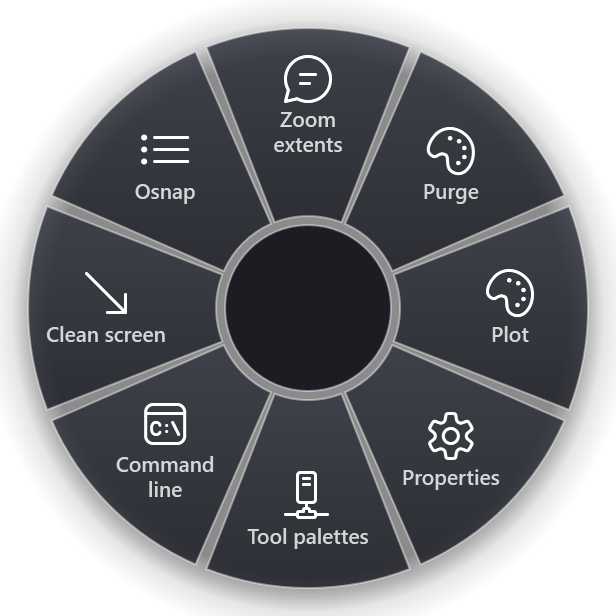
How it relates to the causes above, precisely:
- Cause 3, the layout: a ring does get around it. RadialDeck types macro text as Unicode characters, not as key positions, so
ZOOM Earrives asZOOM Ewhatever layout Windows has active. That is the one case where a ring is more reliable than your keyboard. - Cause 4, aliases: not involved. The macros use full command names, so a changed acad.pgp does not affect them.
- Causes 1 and 2: these are about what AutoCAD shows you, and a ring does not change that. Fix them anyway, so you can read what AutoCAD answers after each command.
- Cause 5 and other programs: no help. Slices such as Plot (Ctrl+P), Properties (Ctrl+1) or Command line (Ctrl+9) send the same keys you would. If the CUI changed them or another program took them, the ring is blocked too.
- Fn Lock: no longer matters. Slices such as Osnap (F3), Ortho (F8) and Polar (F10) send the function key to Windows directly, so on most laptops the top-row setting does not get in the way.
All AutoCAD actions are on the AutoCAD page.
Quick checklist
- F12, or
DYNMODE= 3 andDYNPROMPT= 1. - Ctrl+9 or
COMMANDLINEfor the command line. - Language indicator shows ENG? If not, Win+Space.
(findfile "acad.pgp"), thenREINITafter edits.CUI> Keyboard Shortcuts for Ctrl keys.- Fn or Fn Lock for F-keys; click the drawing and press Esc twice.
RadialDeck is free for two rings and has a 14-day trial of Pro, which adds a ring per program such as the AutoCAD ring above. It is in the Microsoft Store.
Try it in RadialDeck
Free for two rings, with a 14-day trial of everything in Pro. Windows 10 and 11, from the Microsoft Store.
 or download the installer (.exe)