Most menus on a computer are lists. You open them, read down until you find what you want, and click it. A radial menu, also called a pie menu, arranges the same commands in a circle around the mouse pointer. You open it, move a little in one direction, and let go. Nothing to read once you know where things are.
If you have played a game with a weapon wheel, or used Blender, Maya or a drawing tablet's on-screen ring, you have already used one. This guide explains why the shape matters, what Windows 11 gives you out of the box, and how to set up a radial menu that works in every program you use.
How a radial menu works
A radial menu has three parts:
- A trigger. A hotkey you hold, a mouse button, or a tap. The menu appears centred on the pointer.
- Slices. Usually six or eight commands around the centre, each at a fixed angle: top, top-right, right and so on.
- A selection. You move toward a slice and release the trigger, or click. The command runs and the menu disappears.
The important detail is that every slice sits at the same short distance from where the menu opened. In a list, the tenth item is ten rows away from the first. In a ring, all eight items are one flick away.
Why direction beats a list
Two pieces of research explain why this feels faster once you get used to it.
Fitts's law describes how long it takes to point at something: the time grows with the distance to the target and shrinks as the target gets bigger. A pie menu does well on both counts. Every slice starts right next to the pointer, and each slice is a wide wedge that keeps growing the further out you move, so there is a lot of room to land in.
In 1988, Jack Callahan, Don Hopkins, Mark Weiser and Ben Shneiderman compared eight-item pie menus with eight-item linear menus in a study at the University of Maryland. The pie menus were about 15% faster and produced fewer selection errors.
The second effect is muscle memory. Later work on "marking menus" by Gordon Kurtenbach and Bill Buxton showed that once people know where an item is, they stop looking: they select it by the direction of a quick stroke, often before the menu has finished drawing. "Paste values is up-right" becomes something your hand knows, the way you know where the brake pedal is.
That is the real promise of a radial menu. It is not that the first use is faster. It is that the twentieth use takes no thought at all.
What Windows 11 has built in
Windows 11 does not ship a general radial menu. The closest built-in tools are:
- Right-click menus. These are context menus, but they are lists, and in Windows 11 many items sit behind "Show more options".
- Taskbar shortcuts. Win+1 to Win+9 open or switch to the app pinned in that position on the taskbar.
- Keyboard shortcuts. Every program has its own, and you have to remember them per program.
- Pen menu. On pen devices, Windows can show a small pen menu with a few apps, but it is tied to the pen.
These all work, and they are worth learning. What none of them gives you is one gesture that works in every program and changes with the program in front.
Options for a pie menu on Windows
If you want a real radial menu, you have three broad routes:
- A dedicated pie menu app. Kando is a free, open-source pie menu for Windows, macOS and Linux. RadialDeck is a Windows-only radial menu with a gallery of ready-made actions. Both let you build menus that open with a shortcut.
- A script. With AutoHotkey you can draw your own pie menu and wire every slice to a script. Flexible, but you write and maintain it yourself.
- Hardware software. Some mice and tablets come with their own ring menus, tied to that device.
We compare the first two in more detail in Kando alternatives for Windows.
Setting up a radial menu with RadialDeck
RadialDeck is the radial menu we make, so here is how it works in practice.
1. Install it
Get it from the Microsoft Store. On first run, a Welcome window picks a free hotkey for you (Ctrl+Shift+Space unless something else already uses it) and offers ready-made packs for the programs it finds installed.
2. Learn the three ways to pick a slice
A short tour walks you through them, one at a time:
- Hold and flick. Hold the hotkey, move toward a slice, let go.
- Tap and click. Tap the hotkey without holding it and the ring waits for a click. Arrow keys and the number keys 1 to 8 work too.
- Type to find. With the ring open, type the first letters of a slice and press Enter.
You can also open the ring with a side mouse button, the middle button or by holding the right button.
3. Give each program its own ring
This is where a radial menu stops being a launcher and starts saving real time. The same hotkey can open a different ring in Excel, Outlook, Explorer, AutoCAD or your browser. In Excel your up-right slice can be "Paste values"; in Outlook the same direction can be "Reply with a template".
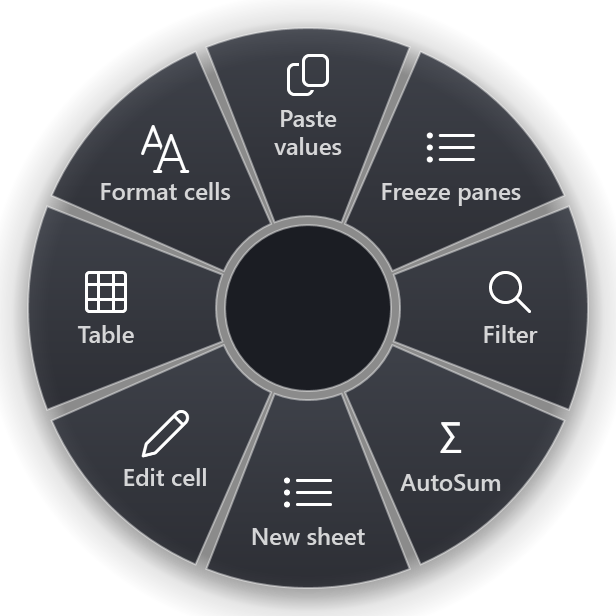
The gallery has 1,400+ ready-made actions for 100+ programs, so most rings are a few clicks to assemble. You can still write your own: launch a program or file, send any keyboard shortcut, paste a text snippet, run a PowerShell or cmd command, or fix the text you copied.
4. Keep it to eight
A ring holds up to eight slices. That limit is deliberate: eight directions are easy to tell apart without looking. If you need more, put a second ring inside a slice (marked with ⋮) and keep the most-used eight on top.
Tips that make it stick
- Put your most common action at the top. Up is the easiest direction for most people.
- Keep the same directions across programs. If "Copy path" is left in Explorer, make "Copy" left everywhere you can.
- Use it for the boring, repeated steps. Five-key sequences you do twenty times a day are the best candidates.
- Give it a week. The speed comes from muscle memory, and that takes a few days of use.
Free and Pro
RadialDeck is free for two rings with up to eight slices each, with every action except macros and clipboard history. Pro is 24 € a year with VAT included and adds unlimited rings, rings per program, nested rings, macros and a clipboard history ring. There is a 14-day trial of everything, so you can try rings per program before deciding.
A radial menu will not replace your keyboard shortcuts. It replaces the moment where you stop, reach for the mouse, open a menu and read. If that moment happens a lot in your day, try one for a week.
Try it in RadialDeck
Free for two rings, with a 14-day trial of everything in Pro. Windows 10 and 11, from the Microsoft Store.
 or download the installer (.exe)