Some text cannot be selected. An error message in a dialog box, a screenshot someone sent you, a slide in a video call, a scanned PDF, a label inside a program's window. Retyping it is slow and error-prone. Windows 11 can read text from the screen with OCR (optical character recognition), and there are several ways to use it.
1. Snipping Tool: Text Actions
The Snipping Tool that comes with Windows 11 can find text in a screenshot.
- Press Win+Shift+S and drag over the area with the text.
- Click the notification to open the screenshot in Snipping Tool.
- Click Text Actions in the toolbar. Snipping Tool highlights the text it found.
- Click Copy all text, or select part of it and press Ctrl+C.
Text Actions can also redact email addresses and phone numbers before you share the screenshot.
Good for: occasional use, screenshots you also want to keep or share.
Limits: several steps each time, and the screenshot goes through the clipboard and Snipping Tool's history.
2. PowerToys Text Extractor
Microsoft PowerToys is a free set of utilities from Microsoft. One of them, Text Extractor, is built for exactly this.
- Install PowerToys and make sure Text Extractor is on.
- Press Win+Shift+T.
- Drag over the text. It is copied to the clipboard straight away.
Hold Shift while dragging to move the selection instead of resizing it, and press Esc to cancel.
Text Extractor uses the OCR built into Windows, so it reads the languages whose OCR packs are installed, starting with your Windows display and keyboard languages. Microsoft's documentation shows how to list and add OCR language packs with PowerShell.
Good for: frequent use, one shortcut, nothing to click through.
Limits: one more program to install and keep updated, and one more shortcut to remember.
3. OneNote: Copy Text from Picture
If you use OneNote, paste or insert a picture into a page, right-click it and choose Copy Text from Picture. The text goes to the clipboard.
Good for: pictures you are already collecting in OneNote.
Limits: you need the picture inside OneNote first.
4. A slice in a radial menu
RadialDeck, the radial menu for Windows that we make, has Copy text from the screen as one of its actions. Put it in your ring and the whole thing is one gesture: flick to the slice, drag over the text, and it is on the clipboard.
How it works:
- The screen freezes, so text in a moving video or a tooltip that would disappear stays put while you select.
- Drag over the text. Esc or a right-click cancels.
- The recognised text is copied to the clipboard as text, with paragraphs joined back into lines. No picture is left on the clipboard or in clipboard history.
- It uses the OCR built into Windows, so, like Text Extractor, it reads the languages whose recognisers are installed. It prefers the script it finds on the screen, so Cyrillic or Greek text is read as such, and English words in the middle of it stay in Latin letters.
- It works where a company policy has removed the Snipping Tool, because it does not use it.
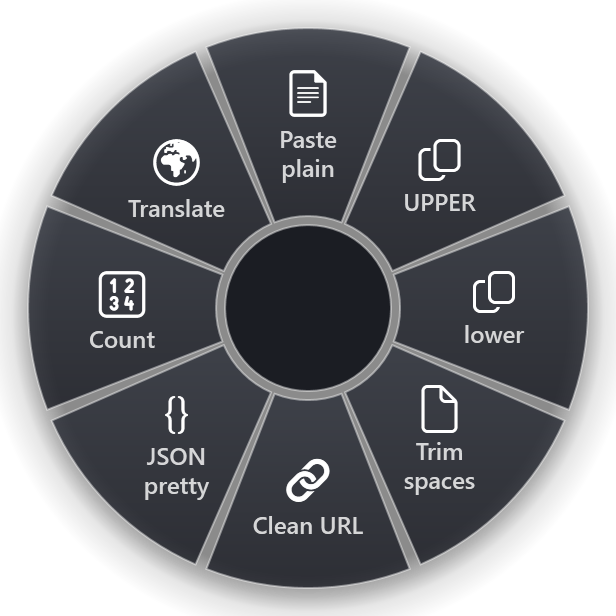
Pair it with the other clipboard slices: Paste plain to paste the text without formatting, UPPER and lower to change its case, Trim spaces to tidy it up.
First, check whether you need OCR at all
OCR reads pixels, so it can make mistakes. Before using it, check whether the text is already real text:
- Error dialogs. In many classic Windows dialogs, Ctrl+C copies the whole message, title and buttons included, even though you cannot select it with the mouse.
- PDFs. Most PDFs made from Word or a web page have a text layer. Try selecting with the mouse first; only scanned pages need OCR.
- Web pages. Text that refuses to be selected is often still in the page. The browser's reader view or print preview usually lets you select it.
- Videos and images. These always need OCR.
If Ctrl+C or a normal selection works, it is exact. OCR is for everything else.
Getting better results
Whichever tool you use, OCR depends on what it can see:
- Zoom in. Small text is the most common cause of mistakes. Press Ctrl+Plus in the browser or the PDF viewer before you select.
- Select tightly. Include only the text you need. Icons and lines next to the text can turn into stray characters.
- Check numbers and codes. OCR can confuse 0 and O, 1 and l, rn and m. Proof-read anything you will paste into a form, an invoice or a command.
- Install the language. If accented letters come out wrong, install the OCR pack for that language in Windows Settings under language options, or with the PowerShell commands in Microsoft's Text Extractor documentation.
- Dark mode is fine. Light text on a dark background usually reads well; very low contrast and stylised fonts are what cause trouble.
Which one to use
- A screenshot you want to keep: Snipping Tool.
- Text you grab several times a day: Text Extractor or a ring slice.
- Pictures already in your notes: OneNote.
All of them use the same OCR engine in Windows, so the quality is similar. The difference is how many steps it takes.
RadialDeck is free for two rings, and Copy text from the screen is included in the free version. It is in the Microsoft Store.
Try it in RadialDeck
Free for two rings, with a 14-day trial of everything in Pro. Windows 10 and 11, from the Microsoft Store.
 or download the installer (.exe)