Most of a working day happens in a browser, and most of the time in a browser is spent opening, finding and closing tabs. A dozen keyboard shortcuts cover nearly all of it.
Every shortcut here is from Google's Chrome keyboard shortcuts page, Windows and Linux section. Microsoft Edge and other Chromium-based browsers share most of them, but check before you rely on one there.
Tabs and windows
- Ctrl+T opens a new tab and jumps to it.
- Ctrl+W closes the current tab.
- Ctrl+Shift+T reopens closed tabs, in the order they were closed. Press it several times to bring back several.
- Ctrl+Tab goes to the next tab, Ctrl+Shift+Tab to the previous one. Ctrl+Page Down and Ctrl+Page Up do the same.
- Ctrl+1 to Ctrl+8 jump to that tab by position.
- Ctrl+9 jumps to the rightmost tab, however many tabs you have.
- Ctrl+N opens a new window.
- Ctrl+Shift+N opens a new Incognito window.
- Ctrl+Shift+W or Alt+F4 closes the whole window.
Ctrl+Shift+T is the one to learn today. It undoes closing the wrong tab.
Getting around
- Ctrl+L, Alt+D or F6 jump to the address bar with the address selected, ready to type over.
- Ctrl+K or Ctrl+E start a search from anywhere on the page.
- Alt+Left goes back, Alt+Right goes forward.
- Alt+Home opens your home page.
- Ctrl+Click on a link opens it in a new background tab, so you can keep reading.
On the page
- Ctrl+F finds text on the page.
- Ctrl+Plus and Ctrl+Minus zoom in and out, Ctrl+0 resets to normal size.
- F5 or Ctrl+R reloads the page.
- Shift+F5 or Ctrl+Shift+R reloads and ignores the cache, for when a page looks stale.
- Esc stops the page loading.
- Ctrl+P prints, Ctrl+S saves the page.
- F11 switches to full screen and back.
Bookmarks, history, downloads
- Ctrl+D bookmarks the current page.
- Ctrl+Shift+B shows or hides the bookmarks bar.
- Ctrl+Shift+O opens the Bookmarks Manager.
- Ctrl+H opens History in a new tab.
- Ctrl+J opens Downloads in a new tab.
- Ctrl+Shift+Delete opens Delete browsing data.
Tools
- Shift+Esc opens Chrome's own Task Manager, which shows which tab or extension is using memory and CPU, and lets you end it.
- F12 or Ctrl+Shift+J opens Developer Tools.
- Ctrl+U shows the page source.
- Alt+F or Alt+E opens the Chrome menu.
- F10 moves the focus to the toolbar, so you can reach extension buttons with the arrow keys and Enter.
- Ctrl+Shift+M switches to another profile or a Guest window.
Shift+Esc is worth knowing even if you never open Developer Tools. When the whole computer feels slow and Chrome is open, it tells you which tab is responsible.
A reading routine with five keys
Shortcuts are easier to keep when they belong to a routine. One that covers most research:
- On a search results page or an article, Ctrl+Click every link that looks useful. Each opens in a background tab and you stay where you are.
- Ctrl+Tab to go to the first one.
- Read it. If it is worth keeping, bookmark it with Ctrl+D.
- Ctrl+W to close it and land on the next tab.
- Closed one too early? Ctrl+Shift+T brings it back.
Shortcuts for extensions
Extensions can have keyboard shortcuts too, and you choose them. Type chrome://extensions/shortcuts in the address bar to see every installed extension and the commands it offers, then click in the box next to a command and press the keys you want.
How to remember them
- T is tab. Ctrl+T opens one, Ctrl+Shift+T brings one back. W closes, as in window.
- Shift reverses or widens. Ctrl+Tab goes forward, Ctrl+Shift+Tab back. Ctrl+W closes a tab, Ctrl+Shift+W the window. F5 reloads, Shift+F5 reloads harder.
- The numbers are positions. Ctrl+1 is the first tab. Pin the tabs you always keep (mail, calendar) and they stay at Ctrl+1 and Ctrl+2.
- L is location. Ctrl+L for the address bar is easy to keep in mind as "location".
- They travel. New tab, close tab, reopen, address bar, find and zoom use the same keys in Edge and Firefox, so time spent learning them is not tied to Chrome.
A browser ring
RadialDeck is the radial menu for Windows that we make. When Chrome is in front, your hotkey or a side mouse button can open a browser ring: hold, flick toward a slice, release. It helps most when you are reading with one hand on the mouse.
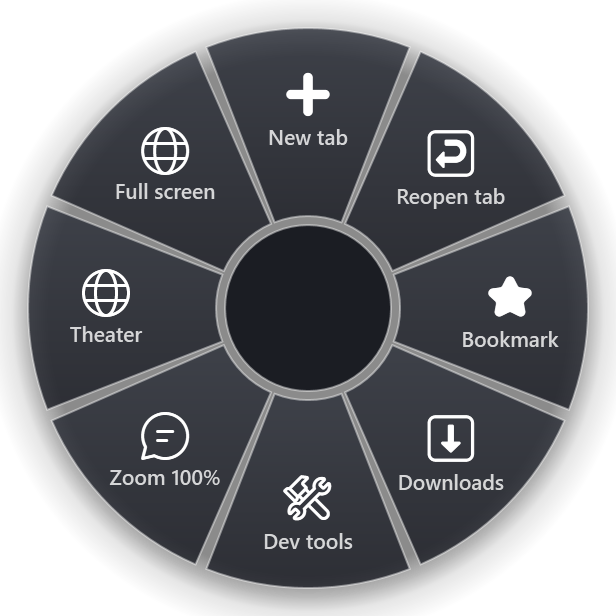
The gallery has slices for any web browser, among them New tab, Reopen closed tab, Bookmark this page, Downloads, Developer tools and Reset zoom, plus a few for sites in the browser, such as YouTube theater mode and full screen. The any web browser page lists them.
For Chrome itself there are Incognito window, Address bar, History, Bookmarks bar, Clear data and Task manager, listed on the Chrome page.
Quick reference
- Tabs: Ctrl+T, Ctrl+W, Ctrl+Shift+T, Ctrl+Tab, Ctrl+1, Ctrl+9
- Go: Ctrl+L, Alt+Left, Alt+Right, Ctrl+Click
- Page: Ctrl+F, Ctrl+0, Shift+F5
- Lists: Ctrl+D, Ctrl+H, Ctrl+J, Ctrl+Shift+B
- Tools: Shift+Esc, F12, Ctrl+Shift+Delete
RadialDeck is free for two rings and has a 14-day trial of Pro, which adds a ring per program such as Chrome. It is in the Microsoft Store.
Try it in RadialDeck
Free for two rings, with a 14-day trial of everything in Pro. Windows 10 and 11, from the Microsoft Store.
 or download the installer (.exe)