Word for Windows has no default keyboard shortcut for strikethrough. Microsoft's list of Word shortcuts for Windows does not include one; the only strikethrough shortcut on that page is for Word for Mac, Cmd+Shift+X.
The good news is that Word lets you assign one yourself in about a minute, and there are two quick routes from the keyboard until you do.
Built-in routes from the keyboard
The Font dialog
Select the text and press Ctrl+D, which Microsoft lists as "Display the Font dialog box" (Ctrl+Shift+F does the same). Tick Strikethrough and press Enter. Each option in the dialog has an underlined letter, so with Alt and that letter you can tick it without the mouse.
The same dialog has Double strikethrough, which the ribbon button does not offer.
The ribbon
Press and release Alt and the ribbon shows key tips. Press H for the Home tab, then the key tip shown on the strikethrough button (the "abc" with a line through it) in the Font group. The letters and numbers follow the language of your Word, so look at the key tips once and remember them.
Assign your own shortcut
This is Microsoft's documented way, for Word for Microsoft 365 and Word 2016 and later:
- Go to File > Options > Customize Ribbon.
- At the bottom, next to Keyboard shortcuts, select Customize.
- In Categories, choose Home Tab. In Commands, choose Strikethrough.
- Click in Press new shortcut key and press the combination you want.
- Look at Current keys and the line below the box: Word shows whether the combination is already used by another command. If it is, pick a different one.
- Select Assign, then Close.
In Save changes in, the default is the Normal template, which makes the shortcut work in every document. Choose the current document instead if you only want it there.
Pick a combination Word does not already use. Many Ctrl+Alt and Ctrl+Shift combinations are taken, so let the dialog tell you rather than guessing.
Why strikethrough "does not work"
- A shortcut from a website does nothing. Some lists online give a strikethrough shortcut for Windows Word that is really from another program, from Word for Mac, or a custom one someone made. Out of the box there is none.
- You assigned it in one document only. If Save changes in was the document, the shortcut lives there. Reassign it in the Normal template.
- The combination is used elsewhere. A key that another program registers system-wide never reaches Word. Choose another.
- Track Changes. With Track Changes on, Word shows deleted text struck through in colour. That is a revision mark, not strikethrough formatting, and it disappears when the change is accepted.
Strikethrough in one flick
RadialDeck is the radial menu for Windows that we make. When Word is in front, the same hotkey that opens your usual ring opens a Word ring. The gallery has Word slices such as track changes, word count, find and replace, comment, link, Heading 1, Normal, page break and save as PDF, but no strikethrough slice, because Word itself has no default key for it.
Once you have assigned your own shortcut above, add it to the ring as a Send keys slice with the same combination. Then strikethrough is: select the text, hold the hotkey, flick toward the slice, let go, with no combination to remember.
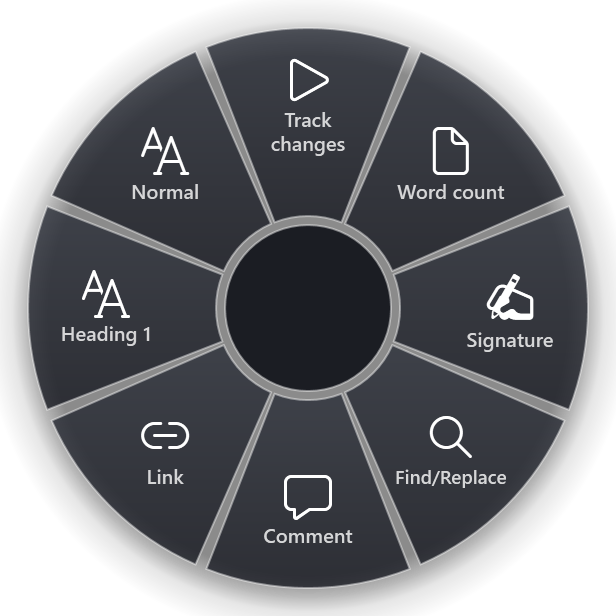
Every Word action in the gallery is on the Word page.
Quick reference
- Default Windows shortcut: none
- Font dialog: Ctrl+D, tick Strikethrough, Enter
- Word for Mac: Cmd+Shift+X
- Your own key: File > Options > Customize Ribbon > Keyboard shortcuts: Customize > Home Tab > Strikethrough
RadialDeck is free for two rings, and Pro adds a ring per program such as the Word ring, with a 14-day trial. It is in the Microsoft Store.
Try it in RadialDeck
Free for two rings, with a 14-day trial of everything in Pro. Windows 10 and 11, from the Microsoft Store.
 or download the installer (.exe)