Most people use Word with five shortcuts: copy, cut, paste, undo and bold. Everything else goes through the ribbon. That is fine for things you do once a month, but styles, track changes, page breaks and moving text around come up every day, and each one has a key.
This list covers Word for Windows (Microsoft 365, 2021 and 2019). Every shortcut here is in Microsoft's list of Word keyboard shortcuts. Some keys you may see elsewhere are left out because they are not Word defaults.
Moving and selecting
- Ctrl+Left and Ctrl+Right move one word at a time.
- Ctrl+Up and Ctrl+Down move one paragraph at a time.
- Ctrl+Home and Ctrl+End go to the start and end of the document.
- Shift+F5 goes back to the place you last edited, also right after you open a document.
- Ctrl+G opens Go To: a page number, a section, a bookmark, a comment.
- Add Shift to any of the movement keys to select instead of move. Ctrl+Shift+Down selects to the end of the paragraph.
- F8 turns on extend mode: press it twice for a word, three times for a sentence, four for a paragraph.
Find, replace and spelling
- Ctrl+F opens the Navigation pane search, which also shows every hit in a list.
- Ctrl+H opens Find and Replace.
- F7 runs the spelling and grammar check (Editor in Microsoft 365).
- Shift+F7 opens the thesaurus for the selected word.
Character formatting
- Ctrl+B, Ctrl+I, Ctrl+U for bold, italic and underline.
- Ctrl+D opens the Font dialog, where strikethrough, small caps and hidden text live. Word has no default shortcut for strikethrough.
- Ctrl+] makes the font one point larger.
- Ctrl+[ makes it one point smaller.
- Shift+F3 cycles the selection through lowercase, UPPERCASE and Capitalize Each Word.
- Ctrl+Shift+A formats the selection as all caps.
- Ctrl+= for subscript, Ctrl+Shift+Plus for superscript.
- Ctrl+Space removes character formatting from the selection.
Paragraphs and styles
- Ctrl+Alt+1, Ctrl+Alt+2 and Ctrl+Alt+3 apply Heading 1, 2 and 3.
- Ctrl+Shift+N applies the Normal style.
- Ctrl+Shift+S opens the Apply Styles pane, where you can type any style name.
- Ctrl+E centers, Ctrl+L aligns left, Ctrl+R aligns right, Ctrl+J justifies.
- Ctrl+1 single line spacing, Ctrl+5 one and a half, Ctrl+2 double.
- Ctrl+Q removes paragraph formatting.
- Alt+Shift+Up and Alt+Shift+Down move the selected paragraph up or down. Faster than cut and paste for reordering a list.
Using heading styles instead of bold text is what makes the Navigation pane, the table of contents and PDF bookmarks work, so Ctrl+Alt+1 is worth learning before almost anything else on this page.
Copy the look of something
- Ctrl+Shift+C copies the formatting of the selection.
- Ctrl+Shift+V pastes that formatting onto another selection.
This is Format Painter without the mouse, and it works across documents.
Breaks and inserts
- Ctrl+Enter inserts a page break. Pressing Enter until the text moves to the next page breaks as soon as anything above changes.
- Shift+Enter inserts a line break inside the same paragraph.
- Ctrl+Shift+Enter inserts a column break.
- Ctrl+K inserts a link.
- Ctrl+Alt+F inserts a footnote.
- Alt+Shift+D inserts the date.
- Ctrl+Shift+8 shows or hides formatting marks, so you can see stray spaces, tabs and breaks.
Review
- Ctrl+Shift+E turns Track Changes on or off.
- Ctrl+Alt+M inserts a comment.
Files
- Ctrl+S saves, F12 opens Save As.
- Ctrl+P prints.
- Ctrl+W closes the document.
- F4 repeats your last action, which is handy after applying a format to one paragraph that ten others need.
How to remember them
Word's shortcuts follow the English word more often than not, which helps:
- Alignment uses initials. Left, Right, Justify. Center is the odd one out: Ctrl+E, think cEnter.
- Spacing uses the number. Ctrl+1 is single, Ctrl+2 is double, Ctrl+5 is one point five.
- Headings use the level. Ctrl+Alt+1 to Ctrl+Alt+3 match Heading 1 to Heading 3.
- Shift means "more" or "the other one". Ctrl+C copies text, Ctrl+Shift+C copies formatting.
- Learn in pairs. Learn Ctrl+Enter and Shift+Enter together, or Ctrl+Shift+C and Ctrl+Shift+V. A pair is easier to keep than one key on its own.
Start with headings, page break and track changes. They change how your documents behave, not just how quickly you make them.
A Word ring for everything else
RadialDeck is the radial menu for Windows that we make. When Word is in front, the hotkey opens a Word ring instead of your usual one: hold the key, flick toward a slice, let go.
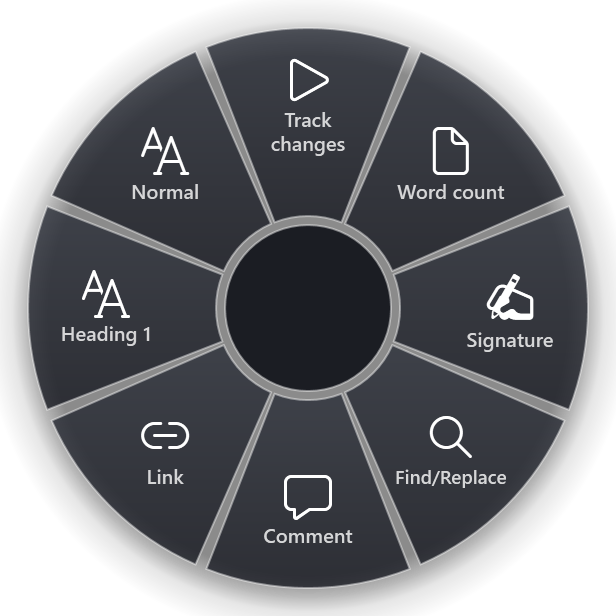
The gallery has 18 ready-made Word slices, among them Track changes, Word count, Jump to end and add signature, Find/Replace, Comment, Link, Heading 1, Normal, Page break, Spelling, Print, Save as PDF, Insert a 3-column table, Read mode, Accept all changes, Table of contents, Clear formatting and Send as attachment. The Word page lists them with what each one does.
The ring pays off for the multi-step jobs that have no single key: saving as PDF, inserting a table of contents, accepting all changes, sending the document by mail.
Quick reference
- Move: Ctrl+Up, Ctrl+Down, Shift+F5, Ctrl+G
- Styles: Ctrl+Alt+1, Ctrl+Shift+N, Ctrl+Shift+S
- Format: Ctrl+D, Shift+F3, Ctrl+Shift+C, Ctrl+Shift+V
- Layout: Ctrl+Enter, Shift+Enter, Ctrl+Shift+8
- Review: Ctrl+Shift+E, Ctrl+Alt+M, F7
RadialDeck is free for two rings and has a 14-day trial of Pro, which adds a ring per program such as the Word ring above. It is in the Microsoft Store.
Try it in RadialDeck
Free for two rings, with a 14-day trial of everything in Pro. Windows 10 and 11, from the Microsoft Store.
 or download the installer (.exe)