In Outlook for Windows, select a message and press Ctrl+Q to mark it as read. Ctrl+U marks it as unread again.
Both shortcuts are the same in the new Outlook and in classic Outlook. Microsoft lists them for both: "Mark the selected conversation or message as read" (Ctrl+Q) and "as unread" (Ctrl+U).
Several messages at once
The shortcuts work on whatever is selected in the message list:
- Shift+Down or Shift+Up extends the selection one message at a time.
- Ctrl and a click adds single messages to the selection.
- Ctrl+A in the message list selects every message in the folder, and Ctrl+Q then marks them all as read.
For a whole folder there is also the right-click menu on the folder itself, which has an option to mark everything in it as read.
Mark as read without opening
Pressing Ctrl+Q in the list is the quickest way to clear a message you do not need to read, such as a notification or a newsletter. It stays where it is, just no longer bold.
If you want the opposite, to keep a message bold after reading it as a reminder, Ctrl+U puts it back.
Why Ctrl+Q does nothing
- The focus is not in the message list. If the cursor is in the search box, the folder pane or an open reply, the shortcut goes there instead. Click the message list or press Esc, then try again.
- The message is open in its own window. In an open message window, the shortcut applies to that message; check that the window you think is active really is.
- Another program has the shortcut. A tool running in the background can register Ctrl+Q for itself. If it never works in Outlook but works on another computer, look at what is running in the background.
- It is not Outlook for Windows. Outlook on the web lets you pick a different shortcut set (for example Gmail or Yahoo style) in its settings, and with those the keys differ. Outlook for Mac uses its own shortcuts.
Read and unread from a ring
RadialDeck is the radial menu for Windows that we make. When Outlook is in front, the same hotkey that opens your usual ring opens an Outlook ring, and the gallery has these as ready-made slices:
- Mark read (Ctrl+Q) for the classic and the new Outlook
- Mark unread (Ctrl+U) for both
- Unread only: shows only unread mail in classic Outlook
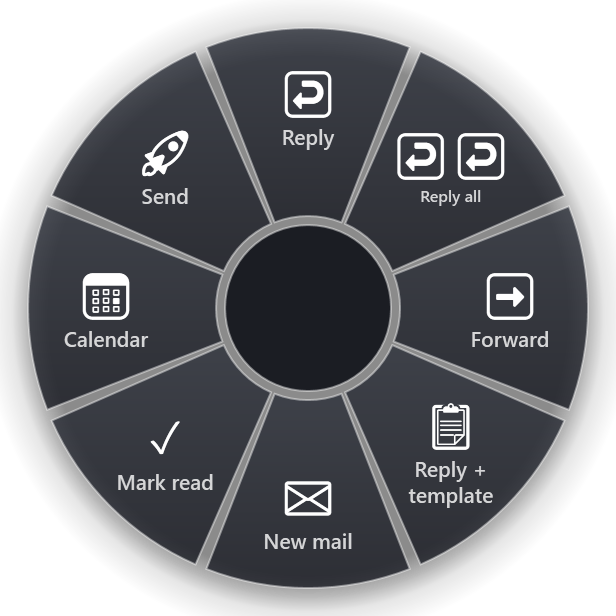
Mark read sits next to Reply, Reply all, Forward and a reply with a prepared text, so going through a full inbox is one gesture per message: flick to reply, flick to mark read, move on.
To mark several messages in a row, hold Shift while you click the slice. The ring runs it and stays open for the next one.
Every Outlook action in the gallery is on the Outlook page. For filing messages away, see the shortcut to move an email to a folder.
Quick reference
- Mark as read: Ctrl+Q
- Mark as unread: Ctrl+U
- Everything in the list: Ctrl+A, then Ctrl+Q
- Same keys in the new and the classic Outlook for Windows
RadialDeck is free for two rings, and Pro adds a ring per program such as the Outlook ring, with a 14-day trial. It is in the Microsoft Store.
Try it in RadialDeck
Free for two rings, with a 14-day trial of everything in Pro. Windows 10 and 11, from the Microsoft Store.
 or download the installer (.exe)