If you handle a lot of email, Quick Steps are the most underused feature in Outlook. A Quick Step applies several actions to a message at once: move it, mark it as read, flag it, forward it, reply and delete. One click instead of four.
This guide gives practical examples, explains what is different in the new Outlook, and covers what Quick Steps cannot do.
Where Quick Steps live
In both classic Outlook for Windows and the new Outlook, Quick Steps are on the Home tab of the ribbon. Select a message, then click a Quick Step. You create and edit them from the same place.
Classic Outlook comes with a few ready-made ones, as Microsoft describes them:
- Move to: moves the selected message to a folder you choose and marks it as read.
- To Manager: forwards the message to your manager.
- Team Email: forwards the message to others in your team.
- Done: moves the message to a folder, marks it complete and marks it as read.
- Reply & Delete: opens a reply and deletes the original message.
One warning from Microsoft's documentation: Quick Steps cannot be undone with Ctrl+Z or a menu command, because some actions, such as deleting, may not be reversible. Test a new Quick Step on a message you do not need.
Examples worth setting up
These are combinations that save real clicks. Build them with New Quick Step and pick the actions in order.
1. "Handled"
Mark as read, remove the flag, move to an "Archive" or "Done" folder. One click clears a message out of the inbox once you have dealt with it.
2. "Waiting for reply"
Flag for follow-up, categorise as "Waiting", move to a "Waiting" folder. When you send a question and need to chase it later, this keeps it visible without cluttering the inbox.
3. "To accounts"
Forward to the accounts team's address, mark as read, move to "Invoices". Useful for anyone who receives invoices and passes them on.
4. "Meeting from this email"
Use the Reply with Meeting action to turn the message into a meeting invitation with the same people. Handy when an email thread needs a call.
5. "Reply and file" (classic Outlook)
Reply, then move the original to a project folder. You answer and file in one go.
Keyboard shortcuts for Quick Steps
Each Quick Step can get a keyboard shortcut of the form Ctrl+Shift plus a number.
- In classic Outlook, you can choose Ctrl+Shift+1 to Ctrl+Shift+9.
- In the new Outlook and Outlook on the web, only Ctrl+Shift+5 to Ctrl+Shift+9 are available, because the lower numbers are used for other commands.
So in the new Outlook you have five shortcut slots at most, and you have to remember which number does what.
Where Quick Steps stop
Quick Steps are good at moving and marking messages. They are less good at:
- Writing. A Quick Step can open a reply, but there is no built-in action that inserts a prepared text into it. For standard answers you need My Templates in the new Outlook, or Quick Parts in classic Outlook, which are separate features with their own steps.
- Working outside Outlook. A Quick Step cannot copy the sender's address into Excel, open the attachment folder, or start a Teams chat.
- Being remembered. Ten Quick Steps in a ribbon gallery, with five keyboard slots, is a lot to keep in your head.
A ring for Outlook
RadialDeck is the radial menu for Windows that we make. When Outlook is in front, the same hotkey that opens your usual ring opens an Outlook ring. The gallery has ready-made Outlook slices, for classic Outlook and for the new Outlook:
- Reply, Reply all and Forward
- New mail, Send, Mark read
- Calendar
- Reply with a template (Pro): opens a reply, waits for it, and pastes your prepared text, so the standard answer is one gesture.
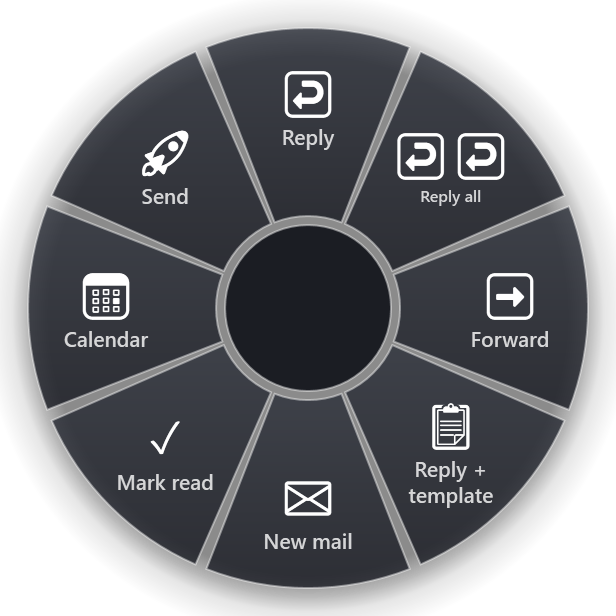
Because the ring opens under the pointer and each slice has a fixed direction, you do not need to remember numbers. "Reply with a template" might be up-right; "Mark read" might be down.
Use both
Quick Steps and a ring work well together. Give your two or three most-used Quick Steps a shortcut (Ctrl+Shift+5 and up in the new Outlook), and put those shortcuts into slices with the Send keys action. Then "Handled" and "Waiting for reply" sit in the ring next to Reply and the template, with no numbers to remember.
Templates without Pro
If you are on the free version, a Paste slice holds any text and pastes it where the cursor is. Press Ctrl+R to reply, then flick to the slice. Two steps instead of one, but no template menus.
Getting started
- Set up two Quick Steps you would use every day, such as "Handled" and "Waiting for reply".
- Give them shortcuts.
- If you write the same answers often, put them in a ring as paste slices or a reply-with-template macro.
RadialDeck is free for two rings. Pro, 24 € a year with VAT included and a 14-day trial, adds a ring per program (such as the Outlook ring above) and macros like Reply with a template. It is in the Microsoft Store, and the Outlook page lists every ready-made Outlook action.
Try it in RadialDeck
Free for two rings, with a 14-day trial of everything in Pro. Windows 10 and 11, from the Microsoft Store.
 or download the installer (.exe)