A shortcut that worked yesterday and does nothing today is rarely broken for good. Excel listens for the keys, but something between your fingers and Excel gets in the way: the keyboard, the input language, another program, an add-in or the sheet itself. Here are the causes in the order they usually turn up, each with a quick way to check it.
First, find out who is ignoring the key
Open a new, empty workbook and try the same shortcut there. Then try one that cannot fail, such as Ctrl+N for a new workbook.
- Nothing works anywhere in Excel: look at the keyboard, the input language and other programs (sections 1 to 3).
- Only one workbook is affected: look at that file (sections 5 and 6).
- Only one shortcut fails: look at function keys, add-ins and macros (sections 1, 4 and 6).
1. Function keys and Fn Lock
Many Excel shortcuts live on the function keys: F2 edits a cell, F4 repeats the last action, Shift+F11 inserts a worksheet, Alt+F1 makes a chart. On most laptops the top row does brightness, volume and media first. To get the F-key you hold Fn, or you switch the row with Fn Lock (on some keyboards it is a key called F Lock, on others Fn+Esc).
Check: press Fn+F2 on a cell. If it opens the cell for editing, the shortcut was fine and the keyboard row was set to media keys.
Fix: turn on Fn Lock, or change the function key setting in your laptop maker's keyboard app or firmware settings, so the F-keys come first.
2. The input language and keyboard layout
Windows can have several keyboard layouts at once, and it is easy to switch by accident: Win+Space and Alt+Shift both change it. Shortcuts with Ctrl usually still work in another layout, but two things change:
- Ctrl+Alt becomes AltGr. On many European layouts, Ctrl+Alt is treated the same as AltGr, the key that types extra characters. A shortcut such as Ctrl+Alt+V (Paste Special) can then produce a character instead of reaching Excel. Google's own developer documentation keeps Ctrl+Alt combinations away from Chrome extension shortcuts for this very reason.
- Typed letters change. Key tips after Alt follow the letters on the ribbon. With a Cyrillic or Greek layout active, the same keys type other letters and the key tips do not match.
Check: look at the language indicator next to the clock in the taskbar.
Fix: switch back with Win+Space before using shortcuts, or remove layouts you do not need in Settings > Time & language > Language & region.
3. Another program took the shortcut
Programs can register a key combination for the whole system. Graphics drivers, screen recorders, clipboard managers, translation tools and chat apps all do it. When they do, Excel never sees the keys.
Check: close tray programs one at a time and try the shortcut after each. The On-Screen Keyboard (search for it in Start) is useful too: if the shortcut works from there but not from your keyboard, look at the keyboard or its software.
Fix: change or turn off the conflicting shortcut in the other program.
4. Add-ins and macros
COM add-ins and macros can claim shortcuts, and a broken add-in can stop keyboard handling altogether.
Check: start Excel in safe mode. Press Win+R, type excel /safe and press Enter (or hold Ctrl while opening Excel and confirm). Safe mode skips add-ins and startup files, as Microsoft describes in its safe mode instructions. If the shortcut works there, an add-in or a startup file is the cause.
Fix: go to File > Options > Add-ins, choose COM Add-ins and Go, clear the boxes, restart, then turn them back on one at a time until the problem returns. For macros, open View > Macros, select each one and choose Options to see which shortcut it uses; a macro set to Ctrl+C replaces copy.
5. The sheet is protected
On a protected sheet, Excel blocks commands that would change it, and their shortcuts do nothing or show a message.
Check: look at Review > Unprotect Sheet. If it is there, the sheet is protected.
Fix: unprotect it if you are allowed to, or ask whoever protected it.
6. You are in the wrong mode
Excel handles keys differently depending on what you are doing:
- Editing a cell (after F2 or typing): many shortcuts are not available until you press Enter or Esc.
- A dialog or a drop-down is open: keys go there first.
- Scroll Lock is on: arrow keys move the window instead of the cell. Excel shows Scroll Lock in the status bar.
- Transition navigation keys: in File > Options > Advanced, under Lotus compatibility, this option changes how some keys behave. Leave it off unless you rely on Lotus 1-2-3 keys.
7. The shortcut is newer than your Excel
Some shortcuts only exist in recent Microsoft 365 builds, and others differ between Excel for Windows, Excel for Mac and Excel on the web. If one particular shortcut never worked on this computer, look it up in Microsoft's list of Excel keyboard shortcuts for your version. Paste values is a good example; our paste values guide lists every route and which one works where.
When shortcuts keep failing: a ring for the commands you use most
RadialDeck is the radial menu for Windows that we make. When Excel is in front, the same hotkey opens an Excel ring, and each slice presses the shortcut for you, or the whole key sequence, such as Ctrl+Alt+V V Enter for paste values.
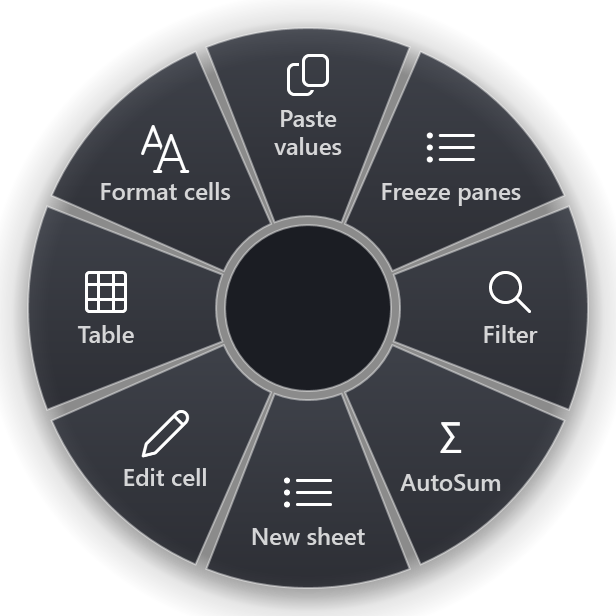
What a ring solves, and what it does not:
- It removes the need to remember key tips such as Alt W F F for freeze panes. You flick toward Freeze panes and the ring presses the keys.
- It does get around cause 1. On most laptops, Fn and Fn Lock are handled inside the keyboard itself, and the ring sends F2 or Shift+F11 to Windows directly, so the function key arrives as a function key whatever the top row is set to.
- It does not get around causes 2 to 6. The ring sends the same key combinations you would press. If another program, an add-in or a protected sheet blocks a shortcut, it blocks the ring too. Fix the cause first; then the ring is reliable.
- Layouts: the ring sends keys, not characters, so Ctrl shortcuts behave as they do from your keyboard. A key-tip sequence such as Alt W F F expects an English Excel and a Latin layout, the same as when you type it.
The gallery has 29 Excel actions, from insert a row above and autofit columns to remove duplicates and save the sheet as PDF. The Excel page lists them.
Quick checklist
- Try Fn with the F-key, or turn on Fn Lock.
- Check the input language in the taskbar; switch with Win+Space.
- Close tray programs one by one.
- Start
excel /safeand test again. - Check Review for a protected sheet.
- Press Esc to leave cell editing and check Scroll Lock.
RadialDeck is free for two rings and has a 14-day trial of Pro, which adds a ring per program such as the Excel ring above. It is in the Microsoft Store.
Try it in RadialDeck
Free for two rings, with a 14-day trial of everything in Pro. Windows 10 and 11, from the Microsoft Store.
 or download the installer (.exe)